Devices & Hardware
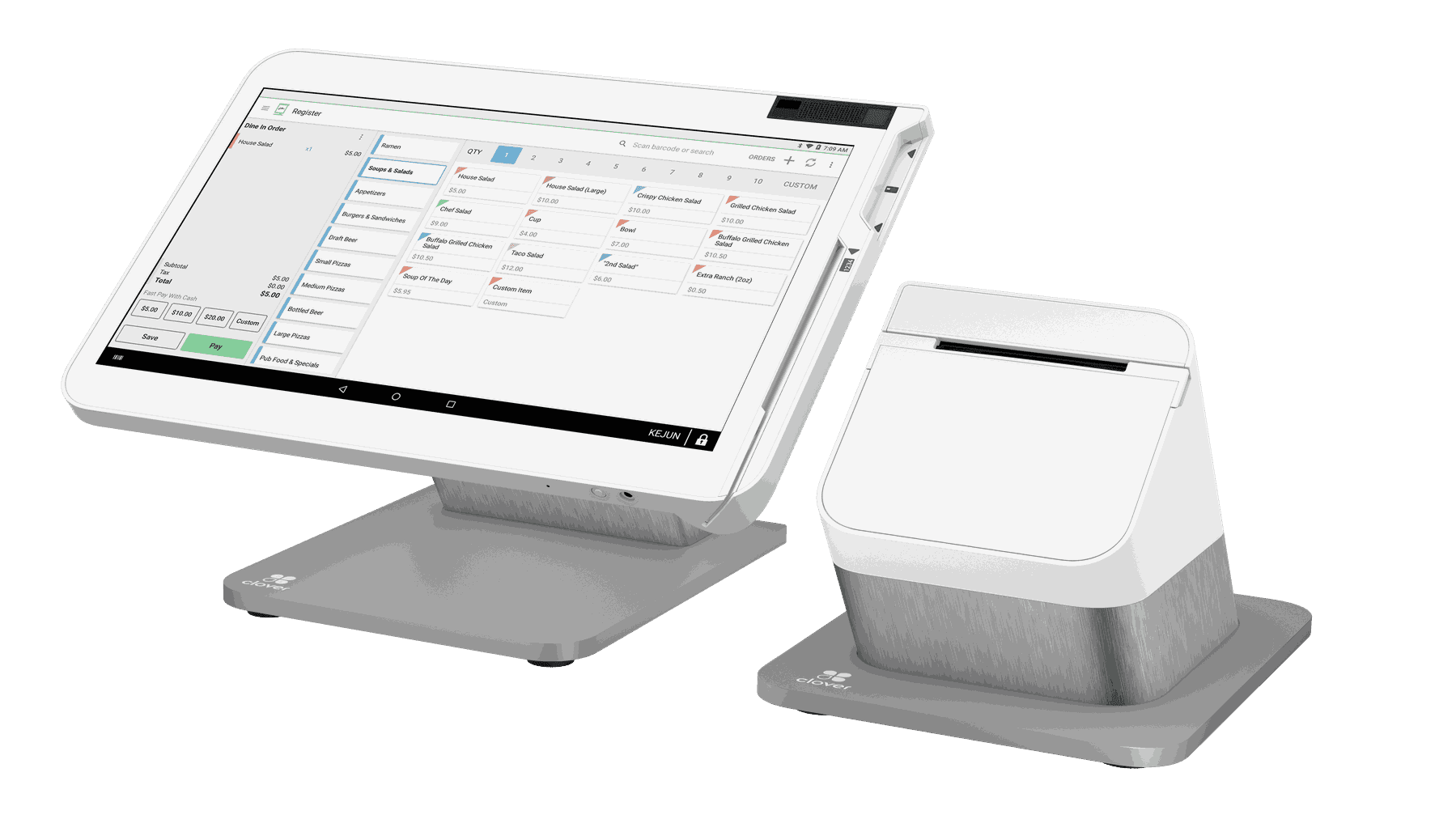
Clover® Station Solo
Clover® Devices & Accessories
What’s in the package
• Clover Station Solo all-in-one POS system with built-in high-speed printer
• Power adapter & power cord
• Quick-Start guide & documentation
• Cash drawer with interface cable (when bundled)
Connect & Activate
Place the Station Solo on your countertop near power and network access.
Plug the power adapter into the Solo and then into an outlet.
Choose your network connection:
• Ethernet — connect a LAN cable from your router/switch into the Solo.
• Wi-Fi — use on-screen setup to join your secure WPA/WPA2 network.Power on — the screen will display the Clover logo as it boots.
Follow on-screen prompts to select your language, connect to the network, and enter your activation code (from your Clover welcome email).
Let the device download the latest software and app updates.
Accepting Payments
• EMV chip cards — insert in the integrated chip slot.
• Magnetic-stripe cards — swipe in the built-in MSR reader.
• Contactless/NFC payments — tap compatible cards or mobile wallets.
• PIN debit — customers can enter PINs via the touchscreen when prompted.
• Digital receipts — optionally send receipts via SMS or email.
Transactions and receipts appear on the display and print instantly.
Security & Everyday Functions
All-in-one design — integrated high-speed thermal receipt printer and a tiltable 14″ touchscreen display streamline checkout.
Barcode scanning — built-in cameras support 1D/2D barcode scanning (may be used with barcode scanner apps).
Connectivity — Ethernet, Wi-Fi, and optional 4G/LTE keep you connected.
Ports & expansion — USB ports for peripherals; 2 RJ12 ports to connect one or two cash drawers.
Security — PCI-compliant encryption and hardened Android OS protect payments.
Cash drawer support — automatically opens on cash transactions when connected via the interface cable.
Replace Receipt Paper
Open the receipt printer cover (typically under/behind the display).
Drop in the thermal paper roll with the paper feeding toward the front.
Close the cover and print a test receipt to confirm correct feeding.
Power & Network
AC Power — Plug the included power adapter into the Station Solo and then into the wall.
Network
• Ethernet — wired connection for stable network access.
• Wi-Fi — wireless setup via on-screen settings.
• LTE/4G — supported on select configurations for fallback or primary connectivity.
Staff Access (Employees App)
• Create, edit, or delete staff profiles, each with a unique passcode.
• Assign employee PINs for secure login at the start of their shifts.
• Customize roles and permissions to control access to functions.
• Staff log in via the Employees app to begin working.
Daily Controls
• Power on — With AC power connected, Solo boots automatically.
• Sleep / wake — Tap the screen or power button to wake.
• Screen navigation — Tap and swipe to navigate Clover apps and menus.
Rebooting
• Soft reboot — Use the on-screen settings menu to restart the system.
• Hard reboot — Disconnect power for ~10–15 seconds, reconnect, and allow the Clover logo to appear as the system restarts.
"/><stop offset="1" stop-color="rgb(0, 0, 0)"/></linearGradient><linearGradient id="dLbUmr3Bl-1838074065-linear-gradient" x1="0.49751243781094523" x2="0.5024875621890548" y1="0" y2="1"><stop offset="0" stop-color="rgb(83, 83, 83)"/><stop offset="1" stop-color="rgb(0, 0, 0)"/></linearGradient><linearGradient id="EfnydF_Kl-1838074065-linear-gradient" x1="0.49751243781094523" x2="0.5024875621890548" y1="0" y2="1"><stop offset="0" stop-color="rgb(83, 83, 83)"/><stop offset="1" stop-color="rgb(0, 0, 0)"/></linearGradient><linearGradient id="Lfh1n6gHp-1838074065-linear-gradient" x1="0.49751243781094523" x2="0.5024875621890548" y1="0" y2="1"><stop offset="0" stop-color="rgb(83, 83, 83)"/><stop offset="1" stop-color="rgb(0, 0, 0)"/></linearGradient><linearGradient id="E4XdCMfOk-1838074065-linear-gradient" x1="0.49751243781094523" x2="0.5024875621890548" y1="0" y2="1"><stop offset="0" stop-color="rgb(83, 83, 83)"/><stop offset="1" stop-color="rgb(0, 0, 0)"/></linearGradient><linearGradient id="MGanZbPSH-1838074065-linear-gradient" x1="0.49751243781094523" x2="0.5024875621890548" y1="0" y2="1"><stop offset="0" stop-color="rgb(83, 83, 83)"/><stop offset="1" stop-color="rgb(0, 0, 0)"/></linearGradient><linearGradient id="xY3MCdxld-1838074065-linear-gradient" x1="0.49751243781094523" x2="0.5024875621890548" y1="0" y2="1"><stop offset="0" stop-color="rgb(83, 83, 83)"/><stop offset="1" stop-color="rgb(0, 0, 0)"/></linearGradient><linearGradient id="u7F_KW_3o-1838074065-linear-gradient" x1="0.49751243781094523" x2="0.5024875621890548" y1="0" y2="1"><stop offset="0" stop-color="rgb(83, 83, 83)"/><stop offset="1" stop-color="rgb(0, 0, 0)"/></linearGradient><linearGradient id="NqlLb7l5o-1838074065-linear-gradient" x1="0.49751243781094523" x2="0.5024875621890548" y1="0" y2="1"><stop offset="0" stop-color="rgb(83, 83, 83)"/><stop offset="1" stop-color="rgb(0, 0, 0)"/></linearGradient><linearGradient id="azgEi0xNw-1838074065-linear-gradient" x1="0.49751243781094523" x2="0.5024875621890548" y1="0" y2="1"><stop offset="0" stop-color="rgb(83, 83, 83)"/><stop offset="1" stop-color="rgb(0, 0, 0)"/></linearGradient><linearGradient id="GKbH5rXgL-1838074065-linear-gradient" x1="0.49751243781094523" x2="0.5024875621890548" y1="0" y2="1"><stop offset="0" stop-color="rgb(83, 83, 83)"/><stop offset="1" stop-color="rgb(0, 0, 0)"/></linearGradient><linearGradient id="WQ2YinGto-1838074065-linear-gradient" x1="0.49751243781094523" x2="0.5024875621890548" y1="0" y2="1"><stop offset="0" stop-color="rgb(83, 83, 83)"/><stop offset="1" stop-color="rgb(0, 0, 0)"/></linearGradient><linearGradient id="iEpVsA2DD-1838074065-linear-gradient" x1="0.49751243781094523" x2="0.5024875621890548" y1="0" y2="1"><stop offset="0" stop-color="rgb(83, 83, 83)"/><stop offset="1" stop-color="rgb(0, 0, 0)"/></linearGradient><linearGradient id="jSarFG8lc-1838074065-linear-gradient" x1="0.49751243781094523" x2="0.5024875621890548" y1="0" y2="1"><stop offset="0" stop-color="rgb(83, 83, 83)"/><stop offset="1" stop-color="rgb(0, 0, 0)"/></linearGradient><linearGradient id="EfjC8EL5j-1838074065-linear-gradient" x1="0.49751243781094523" x2="0.5024875621890548" y1="0" y2="1"><stop offset="0" stop-color="rgb(83, 83, 83)"/><stop offset="1" stop-color="rgb(0, 0, 0)"/></linearGradient></defs><g d="M 26.164 0 L 26.162 15.345 C 26.162 15.373 26.151 15.4 26.131 15.419 C 26.112 15.439 26.085 15.45 26.057 15.45 L 23.747 15.45 C 23.685 15.45 23.635 15.4 23.635 15.338 L 23.631 0 L 26.165 0 Z M 13.241 15.621 L 10.882 15.621 C 10.847 15.621 10.817 15.599 10.806 15.566 L 6.037 0.608 C 6.029 0.584 6.033 0.557 6.049 0.536 C 6.064 0.515 6.088 0.503 6.114 0.503 L 8.471 0.503 C 8.506 0.503 8.536 0.525 8.547 0.558 L 13.318 15.516 C 13.326 15.54 13.322 15.567 13.307 15.588 C 13.291 15.609 13.267 15.621 13.241 15.621 Z M 20.853 13.419 C 20.886 13.415 20.919 13.425 20.944 13.447 C 20.968 13.469 20.983 13.5 20.983 13.533 L 20.983 15.402 C 20.982 15.468 20.937 15.525 20.872 15.541 C 20.342 15.679 19.583 15.725 18.592 15.682 C 16.475 15.596 15.143 14.476 15.139 12.338 C 15.133 10.087 15.132 8.055 15.137 6.242 C 15.136 6.219 15.127 6.198 15.111 6.183 C 15.096 6.168 15.074 6.16 15.052 6.16 L 13.171 6.16 C 13.144 6.16 13.119 6.15 13.1 6.131 C 13.081 6.112 13.071 6.086 13.072 6.059 L 13.072 4.244 C 13.072 4.226 13.08 4.209 13.093 4.196 C 13.107 4.183 13.125 4.176 13.144 4.176 L 15.068 4.178 C 15.086 4.178 15.103 4.171 15.116 4.158 C 15.128 4.145 15.134 4.127 15.134 4.109 L 15.134 1.116 C 15.134 1.071 15.162 1.03 15.204 1.014 C 15.217 1.008 15.232 1.005 15.246 1.006 L 17.551 1.006 C 17.579 1.005 17.605 1.016 17.625 1.035 C 17.644 1.055 17.655 1.082 17.655 1.109 L 17.654 4.104 C 17.654 4.144 17.686 4.177 17.727 4.177 L 20.203 4.177 C 20.226 4.177 20.249 4.184 20.268 4.197 C 20.287 4.212 20.302 4.231 20.31 4.254 L 20.974 6.057 C 20.988 6.093 20.973 6.134 20.94 6.153 C 20.929 6.159 20.917 6.162 20.905 6.162 L 17.735 6.16 C 17.713 6.16 17.691 6.169 17.676 6.186 C 17.66 6.202 17.651 6.223 17.652 6.246 C 17.658 7.869 17.656 9.492 17.648 11.115 C 17.637 11.936 17.704 12.472 17.845 12.722 C 18.406 13.724 19.802 13.547 20.855 13.419 Z M 4.233 2.557 L 5.434 6.318 C 5.438 6.331 5.438 6.345 5.434 6.358 L 4.348 9.77 C 4.341 9.789 4.344 9.81 4.356 9.826 C 4.368 9.842 4.386 9.852 4.406 9.852 L 6.511 9.852 C 6.538 9.852 6.562 9.869 6.571 9.895 L 7.299 12.181 C 7.306 12.2 7.303 12.221 7.291 12.238 C 7.279 12.254 7.26 12.264 7.24 12.264 L 3.597 12.264 C 3.569 12.263 3.545 12.281 3.536 12.307 L 2.518 15.507 C 2.509 15.533 2.485 15.55 2.457 15.55 L 0.063 15.55 C 0.032 15.55 0.006 15.527 0.001 15.497 C -0.001 15.487 0.001 15.476 0.003 15.466 L 4.115 2.557 C 4.123 2.531 4.147 2.514 4.174 2.514 C 4.201 2.514 4.225 2.531 4.233 2.557 Z M 36.343 14.323 C 35.73 14.99 35.198 15.412 34.744 15.592 C 32.327 16.556 28.757 15.995 28.66 12.682 C 28.618 11.25 29.224 10.191 30.477 9.504 C 30.807 9.323 31.413 9.126 32.292 8.909 C 32.858 8.771 34.116 8.564 36.067 8.287 C 36.13 8.279 36.175 8.224 36.17 8.161 C 36.102 7.303 35.664 6.643 34.758 6.447 C 33.484 6.169 31.869 6.487 31.409 7.865 C 31.4 7.888 31.383 7.907 31.361 7.918 C 31.339 7.929 31.314 7.931 31.291 7.924 L 29.175 7.25 C 29.141 7.24 29.113 7.217 29.098 7.185 C 29.082 7.153 29.081 7.116 29.093 7.082 C 29.712 5.37 30.923 4.38 32.727 4.116 C 35.617 3.688 38.631 4.679 38.65 8.068 C 38.66 10.098 38.662 12.623 38.659 15.643 C 38.659 15.676 38.632 15.703 38.598 15.703 L 36.561 15.703 C 36.503 15.703 36.455 15.656 36.455 15.597 L 36.455 14.367 C 36.455 14.347 36.446 14.328 36.431 14.316 C 36.415 14.304 36.394 14.299 36.375 14.304 C 36.363 14.308 36.351 14.315 36.343 14.324 Z M 35.998 10.376 C 34.856 10.539 33.776 10.742 32.759 10.985 C 32.01 11.163 31.188 11.679 31.136 12.446 C 31.08 13.281 31.671 13.845 32.474 13.963 C 34.71 14.288 36.264 12.694 36.122 10.475 C 36.12 10.445 36.105 10.417 36.081 10.398 C 36.058 10.379 36.028 10.371 35.998 10.376 Z M 42.816 12.096 C 43.083 12.903 43.591 13.421 44.339 13.65 C 45.119 13.887 46.446 13.934 47.044 13.234 C 47.479 12.724 47.429 11.838 46.734 11.532 C 45.39 10.938 43.446 10.695 41.965 9.89 C 40.619 9.161 40.306 7.718 40.785 6.331 C 41.211 5.094 42.525 4.338 43.79 4.128 C 46.266 3.715 49.298 4.463 49.814 7.265 C 49.819 7.292 49.813 7.32 49.797 7.343 C 49.782 7.365 49.758 7.381 49.731 7.386 L 47.324 7.82 C 47.279 7.827 47.236 7.797 47.228 7.753 C 47.01 6.456 45.6 6.104 44.456 6.234 C 43.615 6.33 42.683 6.982 43.277 7.888 C 43.601 8.377 45.423 8.773 46.672 9.095 C 48.411 9.545 50.068 10.45 49.904 12.576 C 49.65 15.844 45.992 16.429 43.388 15.771 C 41.661 15.332 40.606 14.247 40.224 12.515 C 40.219 12.493 40.224 12.47 40.236 12.451 C 40.249 12.432 40.268 12.419 40.29 12.414 L 42.639 11.99 C 42.716 11.976 42.792 12.021 42.816 12.096 Z M 16.157 30.917 C 16.124 30.917 16.097 30.944 16.097 30.977 L 16.097 36.046 C 16.097 36.115 16.042 36.17 15.973 36.17 L 13.647 36.17 C 13.628 36.17 13.609 36.163 13.595 36.149 C 13.582 36.136 13.575 36.118 13.575 36.099 L 13.575 21.275 C 13.575 21.212 13.612 21.155 13.671 21.131 C 13.689 21.123 13.709 21.119 13.73 21.119 C 15.86 21.115 17.922 21.116 19.917 21.123 C 22.007 21.13 23.823 21.965 24.513 24.065 C 25.079 25.783 24.926 28.077 23.637 29.481 C 22.588 30.625 21.247 30.909 19.747 30.917 C 18.805 30.923 17.608 30.923 16.157 30.917 Z M 16.102 23.584 L 16.095 28.447 C 16.095 28.475 16.107 28.503 16.127 28.524 C 16.148 28.544 16.176 28.555 16.205 28.555 L 19.977 28.562 C 20.591 28.562 21.179 28.313 21.606 27.872 C 22.039 27.43 22.283 26.83 22.284 26.203 L 22.284 25.849 C 22.284 25.537 22.226 25.231 22.11 24.944 C 21.996 24.658 21.827 24.397 21.612 24.176 C 21.4 23.957 21.146 23.783 20.865 23.663 C 20.587 23.544 20.287 23.483 19.984 23.482 L 16.212 23.474 C 16.182 23.474 16.154 23.485 16.134 23.506 C 16.113 23.526 16.102 23.554 16.102 23.584 Z M 98.864 34.062 L 98.864 35.919 C 98.864 35.985 98.819 36.043 98.755 36.058 C 98.23 36.195 97.475 36.241 96.489 36.199 C 94.387 36.115 93.063 35.002 93.057 32.877 C 93.051 30.641 93.05 28.623 93.054 26.822 C 93.054 26.777 93.017 26.74 92.972 26.74 L 91.101 26.74 C 91.047 26.74 91.003 26.696 91.003 26.641 L 91.003 24.838 C 91.003 24.821 91.01 24.803 91.023 24.791 C 91.036 24.778 91.054 24.771 91.073 24.771 L 92.984 24.771 C 93.002 24.771 93.019 24.764 93.031 24.751 C 93.044 24.738 93.051 24.721 93.051 24.702 L 93.051 21.73 C 93.051 21.669 93.101 21.619 93.162 21.619 L 95.451 21.619 C 95.479 21.62 95.505 21.63 95.524 21.65 C 95.543 21.668 95.554 21.694 95.554 21.721 L 95.554 24.695 C 95.554 24.736 95.586 24.768 95.626 24.769 L 98.085 24.769 C 98.133 24.769 98.176 24.799 98.192 24.844 L 98.853 26.638 C 98.861 26.661 98.858 26.687 98.844 26.707 C 98.83 26.727 98.807 26.738 98.783 26.739 L 95.635 26.739 C 95.613 26.739 95.592 26.748 95.576 26.764 C 95.56 26.779 95.552 26.801 95.552 26.823 C 95.557 29.428 95.557 31.041 95.55 31.664 C 95.54 32.478 95.605 33.01 95.745 33.259 C 96.304 34.254 97.69 34.077 98.735 33.951 C 98.785 33.946 98.832 33.972 98.853 34.017 C 98.86 34.031 98.863 34.047 98.863 34.063 Z M 33.387 34.917 C 33.388 34.89 33.371 34.866 33.346 34.856 C 33.321 34.847 33.292 34.854 33.275 34.874 C 32.665 35.535 32.135 35.955 31.684 36.134 C 29.281 37.087 25.735 36.526 25.644 33.236 C 25.603 31.812 26.207 30.76 27.452 30.078 C 27.779 29.899 28.381 29.703 29.257 29.489 C 29.818 29.353 31.068 29.149 33.007 28.876 C 33.037 28.872 33.064 28.857 33.083 28.834 C 33.101 28.81 33.11 28.781 33.108 28.751 C 33.042 27.896 32.608 27.242 31.707 27.047 C 30.442 26.77 28.838 27.084 28.379 28.451 C 28.361 28.499 28.309 28.525 28.261 28.51 L 26.159 27.838 C 26.109 27.821 26.074 27.776 26.071 27.723 C 26.07 27.706 26.072 27.689 26.078 27.672 C 26.696 25.971 27.901 24.989 29.692 24.728 C 32.565 24.306 35.559 25.294 35.571 28.66 C 35.58 30.678 35.581 33.187 35.573 36.187 C 35.573 36.221 35.546 36.248 35.513 36.248 L 33.489 36.245 C 33.432 36.243 33.386 36.198 33.385 36.141 Z M 32.94 30.948 C 31.806 31.109 30.732 31.31 29.721 31.552 C 28.977 31.728 28.159 32.236 28.107 33 C 28.05 33.829 28.636 34.391 29.434 34.51 C 31.656 34.835 33.202 33.253 33.062 31.049 C 33.06 31.019 33.046 30.991 33.023 30.972 C 33 30.953 32.97 30.945 32.941 30.948 Z M 79.548 24.975 L 81.6 24.975 C 81.637 24.975 81.671 24.998 81.685 25.032 C 81.69 25.044 81.692 25.056 81.692 25.068 L 81.692 26.049 C 81.693 26.068 81.704 26.086 81.723 26.093 C 81.74 26.1 81.76 26.096 81.774 26.083 C 82.867 25.037 84.168 24.56 85.679 24.646 C 88.648 24.814 89.739 27.076 89.812 29.733 C 89.826 30.256 89.829 32.397 89.821 36.156 C 89.82 36.21 89.775 36.254 89.721 36.254 L 87.383 36.254 C 87.339 36.254 87.299 36.228 87.282 36.188 C 87.277 36.175 87.275 36.161 87.275 36.148 C 87.282 34.116 87.28 32.262 87.268 30.583 C 87.255 28.661 86.539 26.697 84.175 27.06 C 82.521 27.312 82.012 28.802 82.006 30.263 L 82.008 36.128 C 82.008 36.162 81.995 36.194 81.971 36.217 C 81.947 36.241 81.915 36.254 81.881 36.254 L 79.552 36.254 C 79.489 36.254 79.439 36.204 79.439 36.142 L 79.439 25.083 C 79.439 25.054 79.45 25.027 79.471 25.006 C 79.492 24.986 79.52 24.975 79.548 24.975 Z M 102.958 32.551 C 103.034 32.538 103.109 32.583 103.133 32.656 C 103.398 33.458 103.903 33.973 104.646 34.2 C 105.422 34.438 106.74 34.484 107.333 33.787 C 107.765 33.282 107.715 32.401 107.025 32.098 C 105.689 31.506 103.758 31.264 102.287 30.466 C 100.951 29.741 100.64 28.308 101.118 26.929 C 101.539 25.702 102.847 24.949 104.103 24.74 C 106.563 24.331 109.573 25.076 110.086 27.86 C 110.088 27.873 110.088 27.887 110.085 27.9 C 110.077 27.941 110.044 27.973 110.002 27.979 L 107.612 28.41 C 107.59 28.414 107.568 28.408 107.55 28.396 C 107.532 28.383 107.52 28.364 107.517 28.342 C 107.301 27.055 105.9 26.705 104.764 26.834 C 103.927 26.929 103.002 27.577 103.591 28.476 C 103.913 28.964 105.723 29.357 106.965 29.677 C 108.693 30.125 110.338 31.024 110.174 33.136 C 109.921 36.382 106.286 36.962 103.701 36.306 C 101.985 35.871 100.937 34.793 100.558 33.072 C 100.553 33.05 100.557 33.027 100.569 33.008 C 100.582 32.989 100.602 32.975 100.624 32.971 Z M 51.003 26.036 C 51.003 26.049 51.011 26.061 51.023 26.065 C 51.036 26.07 51.049 26.067 51.058 26.058 C 52.315 24.72 53.876 24.326 55.741 24.877 C 56.387 25.068 56.971 25.549 57.495 26.322 C 57.506 26.34 57.525 26.351 57.546 26.352 C 57.567 26.352 57.588 26.343 57.6 26.326 C 58.652 24.981 60.061 24.442 61.826 24.709 C 63.743 25.001 64.838 26.614 64.843 28.475 C 64.85 31.234 64.851 33.79 64.845 36.141 C 64.845 36.178 64.816 36.208 64.779 36.208 L 62.456 36.208 C 62.395 36.208 62.345 36.158 62.345 36.097 C 62.348 31.733 62.348 29.47 62.345 29.308 C 62.329 28.287 61.94 27.319 60.915 26.995 C 60.283 26.78 59.588 26.868 59.03 27.233 C 58.223 27.741 58.063 28.623 58.078 29.6 C 58.082 29.837 58.083 32.003 58.081 36.098 C 58.081 36.127 58.07 36.155 58.049 36.176 C 58.029 36.196 58.001 36.208 57.972 36.208 L 55.69 36.208 C 55.661 36.208 55.633 36.197 55.613 36.177 C 55.593 36.156 55.581 36.129 55.581 36.1 C 55.578 34.253 55.577 32.042 55.58 29.466 C 55.582 28.542 55.353 27.663 54.552 27.171 C 53.529 26.54 52.107 26.948 51.562 28.014 C 51.389 28.353 51.303 29.035 51.306 30.06 L 51.319 36.086 C 51.317 36.153 51.263 36.208 51.196 36.21 L 48.873 36.21 C 48.845 36.21 48.819 36.198 48.8 36.179 C 48.78 36.159 48.769 36.132 48.769 36.104 L 48.769 25.013 C 48.769 24.99 48.777 24.969 48.794 24.953 C 48.809 24.937 48.829 24.928 48.851 24.928 L 50.895 24.928 C 50.955 24.928 51.003 24.977 51.003 25.036 Z M 69.593 31.434 C 69.771 33.117 70.791 34.207 72.563 34.184 C 73.727 34.168 74.574 33.647 75.106 32.62 C 75.123 32.587 75.161 32.571 75.197 32.582 L 77.507 33.319 C 77.533 33.327 77.555 33.347 77.566 33.372 C 77.577 33.397 77.576 33.426 77.565 33.451 C 76.298 36.13 73.36 37.115 70.619 36.243 C 68.822 35.673 67.415 34.108 67.033 32.234 C 66.162 27.944 68.829 23.968 73.537 24.731 C 76.797 25.26 77.912 28.218 77.738 31.164 C 77.736 31.201 77.719 31.236 77.692 31.262 C 77.665 31.287 77.629 31.302 77.592 31.302 L 69.712 31.302 C 69.678 31.302 69.646 31.316 69.623 31.341 C 69.6 31.366 69.588 31.4 69.592 31.434 Z M 69.751 29.395 L 75.151 29.366 C 75.159 29.366 75.166 29.363 75.171 29.358 C 75.177 29.353 75.179 29.345 75.179 29.338 L 75.179 29.324 C 75.178 28.995 75.109 28.67 74.978 28.368 C 74.846 28.063 74.655 27.789 74.415 27.559 C 74.173 27.327 73.888 27.144 73.576 27.021 C 73.261 26.897 72.926 26.835 72.588 26.837 L 72.284 26.837 C 71.601 26.84 70.947 27.109 70.467 27.579 C 69.99 28.045 69.721 28.685 69.723 29.352 L 69.723 29.366 C 69.723 29.382 69.736 29.395 69.751 29.395 Z M 36.255 24.636 L 38.707 24.636 C 38.718 24.636 38.729 24.639 38.738 24.646 C 38.748 24.652 38.755 24.661 38.758 24.672 L 40.558 29.549 C 40.563 29.562 40.563 29.577 40.558 29.589 L 39.331 32.907 C 39.323 32.927 39.303 32.941 39.281 32.942 C 39.258 32.942 39.237 32.928 39.229 32.907 L 36.204 24.712 C 36.197 24.695 36.199 24.675 36.21 24.66 C 36.22 24.645 36.237 24.636 36.255 24.636 Z M 41.694 39.999 L 39.299 39.999 C 39.272 40 39.247 39.987 39.232 39.965 C 39.216 39.944 39.212 39.915 39.222 39.89 L 44.838 24.687 C 44.85 24.657 44.879 24.636 44.912 24.636 L 47.308 24.636 C 47.335 24.636 47.36 24.649 47.375 24.67 C 47.391 24.692 47.394 24.72 47.385 24.745 L 41.77 39.949 C 41.758 39.98 41.728 40 41.694 40 Z" fill="transparent" height="39.99999900835239px" id="JA5Qkoe60" width="110.18506074985216px"><path d="M 2.533 0 L 2.531 15.345 C 2.531 15.373 2.52 15.4 2.501 15.419 C 2.481 15.439 2.454 15.45 2.426 15.45 L 0.117 15.45 C 0.054 15.45 0.004 15.4 0.004 15.338 L 0 0 L 2.534 0 Z" fill="url(%23ZzkcP5444-1838074065-linear-gradient)" height="15.450360031893855px" id="ZzkcP5444" transform="translate(23.631 0)" width="2.5339998229801637px"/><path d="M 7.208 15.119 L 4.849 15.119 C 4.814 15.119 4.783 15.096 4.772 15.063 L 0.004 0.106 C -0.004 0.081 0 0.054 0.015 0.033 C 0.03 0.012 0.055 0 0.08 0 L 2.437 0 C 2.472 0 2.503 0.022 2.514 0.055 L 7.284 15.013 C 7.293 15.037 7.288 15.064 7.273 15.085 C 7.258 15.106 7.234 15.119 7.208 15.119 Z" fill="url(%23dLbUmr3Bl-1838074065-linear-gradient)" height="15.11852715378655px" id="dLbUmr3Bl" transform="translate(6.033 0.503)" width="7.288473934228487px"/><path d="M 7.781 12.414 C 7.814 12.41 7.847 12.42 7.871 12.441 C 7.896 12.463 7.91 12.494 7.911 12.527 L 7.911 14.397 C 7.91 14.463 7.864 14.52 7.8 14.535 C 7.27 14.673 6.511 14.719 5.52 14.676 C 3.403 14.591 2.07 13.47 2.066 11.333 C 2.06 9.081 2.059 7.049 2.064 5.236 C 2.064 5.214 2.055 5.193 2.039 5.178 C 2.023 5.162 2.002 5.154 1.98 5.154 L 0.099 5.154 C 0.072 5.155 0.046 5.144 0.028 5.125 C 0.009 5.106 -0.001 5.081 0 5.054 L 0 3.239 C 0 3.221 0.008 3.203 0.021 3.191 C 0.035 3.178 0.053 3.17 0.071 3.171 L 1.996 3.173 C 2.014 3.173 2.031 3.165 2.043 3.152 C 2.056 3.139 2.062 3.121 2.061 3.103 L 2.061 0.111 C 2.062 0.065 2.09 0.025 2.132 0.008 C 2.145 0.003 2.16 0 2.174 0 L 4.479 0 C 4.506 -0.001 4.533 0.01 4.553 0.03 C 4.572 0.049 4.583 0.076 4.582 0.104 L 4.581 3.098 C 4.581 3.139 4.614 3.172 4.655 3.172 L 7.13 3.172 C 7.154 3.172 7.177 3.179 7.196 3.192 C 7.215 3.206 7.229 3.226 7.238 3.248 L 7.902 5.052 C 7.916 5.088 7.901 5.129 7.868 5.147 C 7.857 5.153 7.845 5.156 7.832 5.157 L 4.663 5.154 C 4.64 5.155 4.619 5.164 4.603 5.18 C 4.588 5.196 4.579 5.218 4.579 5.24 C 4.585 6.863 4.584 8.487 4.575 10.11 C 4.565 10.93 4.632 11.466 4.772 11.717 C 5.334 12.718 6.73 12.541 7.783 12.414 Z" fill="url(%23EfnydF_Kl-1838074065-linear-gradient)" height="14.691742440766074px" id="EfnydF_Kl" transform="translate(13.072 1.006)" width="7.91075189913834px"/><path d="M 4.233 0.043 L 5.434 3.804 C 5.438 3.817 5.438 3.831 5.434 3.844 L 4.348 7.256 C 4.341 7.275 4.344 7.296 4.356 7.312 C 4.368 7.328 4.386 7.338 4.406 7.338 L 6.511 7.338 C 6.538 7.338 6.562 7.355 6.571 7.381 L 7.299 9.667 C 7.306 9.686 7.303 9.708 7.291 9.724 C 7.279 9.74 7.26 9.75 7.24 9.75 L 3.597 9.75 C 3.569 9.749 3.545 9.767 3.536 9.793 L 2.518 12.993 C 2.509 13.019 2.485 13.036 2.457 13.036 L 0.063 13.036 C 0.032 13.036 0.006 13.013 0.001 12.983 C -0.001 12.973 0.001 12.963 0.003 12.953 L 4.115 0.043 C 4.123 0.017 4.147 0 4.174 0 C 4.201 0 4.225 0.017 4.233 0.043 Z" fill="url(%23Lfh1n6gHp-1838074065-linear-gradient)" height="13.035976328997801px" id="Lfh1n6gHp" transform="translate(0 2.514)" width="7.30248827717172px"/><path d="M 7.685 10.301 C 7.072 10.968 6.539 11.39 6.086 11.57 C 3.668 12.534 0.099 11.972 0.002 8.66 C -0.04 7.228 0.565 6.168 1.819 5.482 C 2.149 5.301 2.754 5.103 3.634 4.886 C 4.199 4.749 5.457 4.541 7.409 4.265 C 7.471 4.257 7.516 4.202 7.512 4.139 C 7.443 3.28 7.006 2.621 6.1 2.425 C 4.826 2.147 3.211 2.465 2.75 3.843 C 2.742 3.866 2.725 3.885 2.703 3.896 C 2.681 3.907 2.656 3.909 2.633 3.902 L 0.517 3.228 C 0.483 3.218 0.455 3.194 0.439 3.163 C 0.424 3.131 0.422 3.094 0.434 3.06 C 1.054 1.348 2.265 0.358 4.069 0.094 C 6.958 -0.335 9.973 0.657 9.991 4.046 C 10.001 6.076 10.003 8.601 10 11.62 C 10 11.654 9.973 11.681 9.94 11.681 L 7.903 11.681 C 7.844 11.681 7.797 11.634 7.797 11.575 L 7.797 10.344 C 7.797 10.325 7.788 10.306 7.772 10.294 C 7.756 10.281 7.736 10.277 7.717 10.282 C 7.704 10.285 7.693 10.292 7.685 10.302 Z M 7.34 6.353 C 6.197 6.516 5.117 6.719 4.101 6.963 C 3.352 7.141 2.53 7.657 2.478 8.424 C 2.421 9.258 3.013 9.823 3.816 9.941 C 6.051 10.266 7.606 8.672 7.463 6.453 C 7.461 6.423 7.447 6.395 7.423 6.376 C 7.4 6.357 7.369 6.349 7.34 6.353 Z" fill="url(%23E4XdCMfOk-1838074065-linear-gradient)" height="11.9940043425112px" id="E4XdCMfOk" transform="translate(28.658 4.022)" width="10.001589314558887px"/><path d="M 2.594 8.073 C 2.861 8.881 3.368 9.399 4.117 9.628 C 4.897 9.865 6.224 9.911 6.822 9.212 C 7.257 8.702 7.207 7.816 6.512 7.51 C 5.167 6.916 3.224 6.673 1.742 5.868 C 0.397 5.139 0.083 3.696 0.563 2.308 C 0.988 1.072 2.303 0.315 3.568 0.105 C 6.044 -0.307 9.076 0.441 9.592 3.243 C 9.597 3.27 9.591 3.298 9.575 3.32 C 9.56 3.343 9.535 3.358 9.508 3.363 L 7.102 3.798 C 7.057 3.805 7.014 3.775 7.006 3.73 C 6.787 2.434 5.378 2.082 4.234 2.212 C 3.393 2.307 2.46 2.96 3.055 3.866 C 3.379 4.355 5.201 4.751 6.449 5.073 C 8.189 5.523 9.846 6.428 9.681 8.554 C 9.428 11.822 5.77 12.407 3.165 11.749 C 1.439 11.31 0.384 10.225 0.002 8.493 C -0.003 8.47 0.001 8.447 0.014 8.428 C 0.026 8.41 0.046 8.396 0.068 8.392 L 2.417 7.968 C 2.494 7.954 2.569 7.999 2.594 8.073 Z" fill="url(%23MGanZbPSH-1838074065-linear-gradient)" height="11.988232656540577px" id="MGanZbPSH" transform="translate(40.222 4.022)" width="9.692705911587304px"/><path d="M 2.582 9.8 C 2.549 9.8 2.522 9.827 2.522 9.861 L 2.522 14.93 C 2.522 14.998 2.467 15.054 2.398 15.054 L 0.072 15.054 C 0.053 15.054 0.034 15.046 0.02 15.032 C 0.007 15.019 0 15.001 0 14.982 L 0 0.158 C 0 0.095 0.037 0.039 0.096 0.014 C 0.114 0.007 0.134 0.002 0.155 0.002 C 2.285 -0.002 4.347 -0.001 6.342 0.006 C 8.432 0.013 10.248 0.848 10.938 2.949 C 11.504 4.666 11.351 6.961 10.062 8.365 C 9.013 9.508 7.672 9.792 6.172 9.8 C 5.23 9.807 4.033 9.807 2.582 9.8 Z M 2.527 2.467 L 2.52 7.33 C 2.52 7.359 2.532 7.387 2.552 7.407 C 2.573 7.427 2.601 7.439 2.63 7.438 L 6.402 7.445 C 7.016 7.445 7.604 7.196 8.031 6.756 C 8.464 6.313 8.708 5.713 8.709 5.086 L 8.709 4.732 C 8.709 4.421 8.651 4.114 8.535 3.827 C 8.421 3.541 8.252 3.28 8.037 3.059 C 7.825 2.84 7.571 2.666 7.29 2.546 C 7.012 2.427 6.712 2.366 6.409 2.365 L 2.637 2.357 C 2.607 2.357 2.579 2.369 2.559 2.389 C 2.538 2.41 2.527 2.438 2.527 2.467 Z" fill="url(%23xY3MCdxld-1838074065-linear-gradient)" height="15.053507922219591px" id="xY3MCdxld" transform="translate(13.575 21.117)" width="11.250140998195976px"/><path d="M 7.861 12.443 L 7.861 14.3 C 7.861 14.366 7.816 14.423 7.752 14.439 C 7.227 14.576 6.472 14.622 5.486 14.58 C 3.385 14.495 2.06 13.383 2.054 11.257 C 2.048 9.022 2.047 7.004 2.051 5.203 C 2.051 5.157 2.014 5.12 1.969 5.12 L 0.099 5.12 C 0.044 5.12 0 5.076 0 5.022 L 0 3.219 C 0 3.202 0.007 3.184 0.02 3.172 C 0.034 3.158 0.052 3.151 0.07 3.151 L 1.981 3.151 C 1.999 3.151 2.016 3.144 2.028 3.131 C 2.041 3.118 2.048 3.101 2.048 3.083 L 2.048 0.111 C 2.048 0.05 2.098 0 2.159 0 L 4.449 0 C 4.476 0 4.502 0.011 4.521 0.03 C 4.54 0.049 4.551 0.075 4.551 0.102 L 4.551 3.076 C 4.551 3.116 4.583 3.149 4.624 3.149 L 7.082 3.149 C 7.13 3.149 7.174 3.179 7.19 3.225 L 7.85 5.019 C 7.858 5.042 7.855 5.067 7.841 5.087 C 7.827 5.107 7.804 5.119 7.78 5.119 L 4.633 5.119 C 4.61 5.119 4.589 5.128 4.573 5.144 C 4.558 5.16 4.549 5.181 4.549 5.204 C 4.554 7.808 4.554 9.422 4.547 10.044 C 4.537 10.859 4.602 11.391 4.742 11.639 C 5.301 12.635 6.687 12.458 7.733 12.331 C 7.782 12.326 7.829 12.353 7.85 12.397 C 7.857 12.412 7.86 12.428 7.86 12.444 Z" fill="url(%23u7F_KW_3o-1838074065-linear-gradient)" height="14.594639374261174px" id="u7F_KW_3o" transform="translate(91.003 21.619)" width="7.861432784150409px"/><path d="M 7.746 10.281 C 7.746 10.254 7.729 10.23 7.704 10.22 C 7.679 10.211 7.651 10.218 7.633 10.238 C 7.024 10.899 6.494 11.319 6.042 11.498 C 3.639 12.451 0.093 11.89 0.002 8.6 C -0.038 7.176 0.565 6.124 1.81 5.442 C 2.138 5.263 2.739 5.067 3.615 4.853 C 4.176 4.717 5.426 4.513 7.366 4.24 C 7.395 4.236 7.422 4.221 7.441 4.197 C 7.459 4.174 7.468 4.145 7.466 4.115 C 7.401 3.26 6.966 2.606 6.065 2.411 C 4.8 2.134 3.197 2.448 2.737 3.815 C 2.719 3.863 2.668 3.889 2.619 3.874 L 0.518 3.202 C 0.468 3.185 0.433 3.14 0.429 3.087 C 0.428 3.07 0.43 3.053 0.436 3.036 C 1.055 1.335 2.259 0.353 4.05 0.092 C 6.923 -0.331 9.918 0.658 9.93 4.024 C 9.939 6.042 9.94 8.551 9.932 11.551 C 9.932 11.584 9.905 11.611 9.871 11.611 L 7.847 11.608 C 7.79 11.607 7.745 11.562 7.744 11.505 Z M 7.298 6.312 C 6.164 6.473 5.09 6.674 4.079 6.916 C 3.335 7.091 2.518 7.6 2.465 8.364 C 2.408 9.193 2.994 9.755 3.793 9.874 C 6.014 10.199 7.561 8.617 7.42 6.413 C 7.418 6.383 7.404 6.355 7.381 6.336 C 7.358 6.317 7.329 6.309 7.299 6.312 Z" fill="url(%23NqlLb7l5o-1838074065-linear-gradient)" height="11.915763402294369px" id="NqlLb7l5o" transform="translate(25.642 24.636)" width="9.93720057387403px"/><path d="M 0.11 0.339 L 2.161 0.339 C 2.198 0.339 2.232 0.361 2.246 0.396 C 2.251 0.408 2.254 0.42 2.253 0.432 L 2.253 1.413 C 2.254 1.432 2.266 1.45 2.284 1.457 C 2.301 1.464 2.321 1.46 2.335 1.447 C 3.428 0.401 4.729 -0.077 6.24 0.01 C 9.209 0.178 10.3 2.44 10.373 5.097 C 10.387 5.62 10.39 7.761 10.382 11.52 C 10.381 11.574 10.337 11.618 10.282 11.618 L 7.944 11.618 C 7.9 11.618 7.86 11.592 7.843 11.552 C 7.838 11.539 7.836 11.525 7.836 11.511 C 7.843 9.48 7.841 7.626 7.829 5.947 C 7.816 4.025 7.1 2.061 4.736 2.424 C 3.082 2.676 2.573 4.166 2.567 5.627 L 2.569 11.492 C 2.569 11.526 2.556 11.558 2.532 11.581 C 2.508 11.605 2.476 11.618 2.442 11.618 L 0.113 11.618 C 0.05 11.618 0 11.568 0 11.505 L 0 0.447 C 0 0.418 0.012 0.391 0.032 0.37 C 0.053 0.35 0.081 0.338 0.11 0.339 Z" fill="url(%23azgEi0xNw-1838074065-linear-gradient)" height="11.618074518916687px" id="azgEi0xNw" transform="translate(79.439 24.636)" width="10.38674826437383px"/><path d="M 2.402 7.914 C 2.479 7.902 2.553 7.947 2.577 8.02 C 2.843 8.822 3.348 9.337 4.091 9.564 C 4.866 9.802 6.184 9.848 6.778 9.151 C 7.21 8.646 7.16 7.765 6.47 7.462 C 5.133 6.87 3.203 6.628 1.732 5.83 C 0.395 5.105 0.085 3.672 0.562 2.292 C 0.984 1.066 2.292 0.312 3.548 0.104 C 6.007 -0.305 9.018 0.44 9.531 3.224 C 9.533 3.237 9.533 3.251 9.53 3.264 C 9.521 3.305 9.488 3.337 9.446 3.343 L 7.056 3.774 C 7.035 3.777 7.012 3.772 6.995 3.76 C 6.977 3.747 6.965 3.728 6.962 3.706 C 6.745 2.419 5.345 2.069 4.208 2.198 C 3.372 2.292 2.447 2.941 3.036 3.84 C 3.358 4.328 5.168 4.721 6.409 5.041 C 8.137 5.489 9.782 6.388 9.618 8.5 C 9.366 11.746 5.731 12.326 3.145 11.67 C 1.429 11.235 0.381 10.157 0.002 8.436 C -0.003 8.414 0.001 8.391 0.014 8.372 C 0.026 8.352 0.046 8.339 0.068 8.335 Z" fill="url(%23GKbH5rXgL-1838074065-linear-gradient)" height="11.909158715583702px" id="GKbH5rXgL" transform="translate(100.556 24.636)" width="9.629511128270114px"/><path d="M 2.233 1.4 C 2.234 1.413 2.242 1.425 2.254 1.429 C 2.266 1.434 2.28 1.431 2.289 1.422 C 3.546 0.084 5.106 -0.31 6.972 0.241 C 7.617 0.432 8.201 0.913 8.725 1.686 C 8.737 1.704 8.756 1.715 8.777 1.716 C 8.798 1.716 8.818 1.707 8.831 1.69 C 9.883 0.345 11.291 -0.194 13.056 0.073 C 14.974 0.365 16.069 1.978 16.074 3.839 C 16.081 6.598 16.082 9.154 16.076 11.505 C 16.076 11.542 16.046 11.572 16.009 11.572 L 13.687 11.572 C 13.626 11.572 13.576 11.522 13.576 11.461 C 13.579 7.097 13.579 4.834 13.576 4.671 C 13.56 3.651 13.171 2.682 12.145 2.359 C 11.514 2.143 10.819 2.231 10.261 2.597 C 9.453 3.105 9.293 3.987 9.308 4.964 C 9.312 5.201 9.313 7.367 9.311 11.462 C 9.312 11.491 9.3 11.519 9.28 11.539 C 9.26 11.56 9.232 11.572 9.203 11.572 L 6.92 11.572 C 6.892 11.572 6.864 11.561 6.844 11.54 C 6.823 11.52 6.812 11.493 6.812 11.464 C 6.809 9.617 6.808 7.406 6.811 4.83 C 6.813 3.906 6.583 3.027 5.783 2.535 C 4.759 1.904 3.337 2.311 2.792 3.378 C 2.619 3.717 2.534 4.399 2.537 5.424 L 2.549 11.45 C 2.548 11.517 2.494 11.572 2.426 11.574 L 0.104 11.574 C 0.076 11.574 0.049 11.562 0.03 11.542 C 0.011 11.523 0 11.496 0 11.468 L 0 0.377 C 0 0.354 0.008 0.332 0.024 0.316 C 0.039 0.301 0.06 0.292 0.081 0.292 L 2.126 0.292 C 2.185 0.292 2.233 0.34 2.233 0.4 Z" fill="url(%23WQ2YinGto-1838074065-linear-gradient)" height="11.573595524441552px" id="WQ2YinGto" transform="translate(48.769 24.636)" width="16.079777199285612px"/><path d="M 2.723 6.797 C 2.901 8.481 3.922 9.571 5.694 9.548 C 6.858 9.532 7.705 9.011 8.237 7.984 C 8.253 7.951 8.292 7.935 8.327 7.946 L 10.638 8.683 C 10.664 8.691 10.685 8.711 10.696 8.736 C 10.707 8.761 10.707 8.79 10.695 8.815 C 9.428 11.494 6.491 12.479 3.75 11.607 C 1.953 11.037 0.545 9.472 0.164 7.598 C -0.708 3.308 1.96 -0.668 6.668 0.094 C 9.928 0.624 11.042 3.582 10.868 6.528 C 10.866 6.565 10.85 6.6 10.823 6.625 C 10.796 6.651 10.76 6.666 10.722 6.666 L 2.843 6.666 C 2.809 6.666 2.776 6.68 2.753 6.705 C 2.73 6.73 2.719 6.764 2.722 6.797 Z M 2.882 4.759 L 8.282 4.73 C 8.289 4.73 8.297 4.727 8.302 4.722 C 8.307 4.717 8.31 4.709 8.31 4.702 L 8.31 4.688 C 8.308 4.359 8.24 4.033 8.109 3.731 C 7.977 3.427 7.785 3.152 7.546 2.923 C 7.303 2.691 7.018 2.508 6.706 2.385 C 6.392 2.261 6.057 2.199 5.719 2.201 L 5.415 2.201 C 4.731 2.204 4.078 2.473 3.598 2.943 C 3.12 3.409 2.852 4.049 2.854 4.716 L 2.854 4.73 C 2.854 4.746 2.866 4.759 2.882 4.759 Z" fill="url(%23iEpVsA2DD-1838074065-linear-gradient)" height="11.916219469509583px" id="iEpVsA2DD" transform="translate(66.869 24.636)" width="10.885469621589495px"/><path d="M 0.055 0 L 2.507 0 C 2.518 0 2.529 0.003 2.538 0.01 C 2.548 0.016 2.555 0.025 2.558 0.036 L 4.358 4.913 C 4.363 4.926 4.363 4.94 4.358 4.953 L 3.131 8.271 C 3.123 8.291 3.103 8.305 3.081 8.306 C 3.058 8.306 3.037 8.292 3.029 8.271 L 0.004 0.075 C -0.003 0.058 -0.001 0.039 0.01 0.024 C 0.02 0.009 0.037 0 0.055 0 Z" fill="url(%23jSarFG8lc-1838074065-linear-gradient)" height="8.30590347630227px" id="jSarFG8lc" transform="translate(36.2 24.636)" width="4.361683075575399px"/><path d="M 2.478 15.363 L 0.083 15.363 C 0.056 15.364 0.03 15.351 0.015 15.329 C -0.001 15.307 -0.004 15.279 0.005 15.254 L 5.621 0.051 C 5.633 0.021 5.663 0 5.696 0 L 8.092 0 C 8.118 0 8.143 0.012 8.159 0.034 C 8.174 0.056 8.177 0.084 8.168 0.109 L 2.553 15.313 C 2.541 15.344 2.511 15.364 2.478 15.364 Z" fill="url(%23EfjC8EL5j-1838074065-linear-gradient)" height="15.363890609914886px" id="EfjC8EL5j" transform="translate(39.217 24.636)" width="8.173289458766591px"/></g></svg>)